Command Palette
Search for a command to run...
Online Tutorial | FLUX 3 Image Klein Open-Sourced: 5.6B Model Handles Text-to-Image, Image Editing, and 10-Image Composition

Text-to-image, image editing, and multi-image reference often appear in the same creative workflow. In the past, developers might have needed to switch between different models or components. FLUX 3 Image Klein, released by Black Forest Labs on October 15, 2026, supports these tasks using the same set of image generation weights: generating images from text, modifying content based on existing images, or creating compositions using up to 10 reference images.
This is an open-weight model, with 5.6B parameters in its image generation component. According to official information, it supports native 4K generation and allows specifying element positions or editing regions via bounding boxes. Bounding boxes are used to guide layout; the specific coordinate format should follow the interface in use.
Prompt processing is also a key part of practical usage. Official documentation states that the model expects full scene descriptions rather than keywords; sending short prompts as-is yields only generic results. Therefore, the reference implementation loads a separate prompt expansion model by default to expand requests into descriptive paragraphs. It is trained to understand storyboard descriptions, not just interpret a few tags. Bounding boxes follow the same logic: they guide element position and scale on a 0–1000 grid, constraining layout without locking pixels.
When conditions can be described uniformly, the model does not need to be split by task. The tutorial section on the HyperAI official website (hyper.ai) has launched “FLUX 3 Image Klein: Text-to-Image and Image Editing.” Visit the HyperAI website to run through the entire process, from loading distilled weights to launching the WebUI.
Run Online:
More Online Tutorials:
Running the Demo
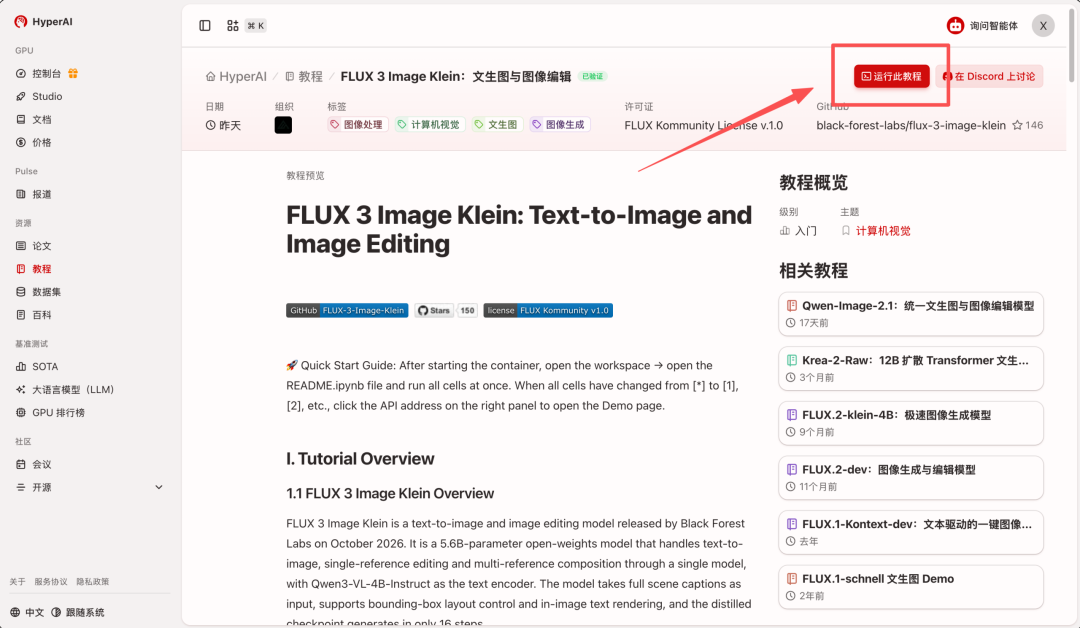
- After entering the hyper.ai homepage, select the “Tutorials” page, or click “View More Tutorials,” choose “FLUX 3 Image Klein,” and click “Run This Tutorial.”

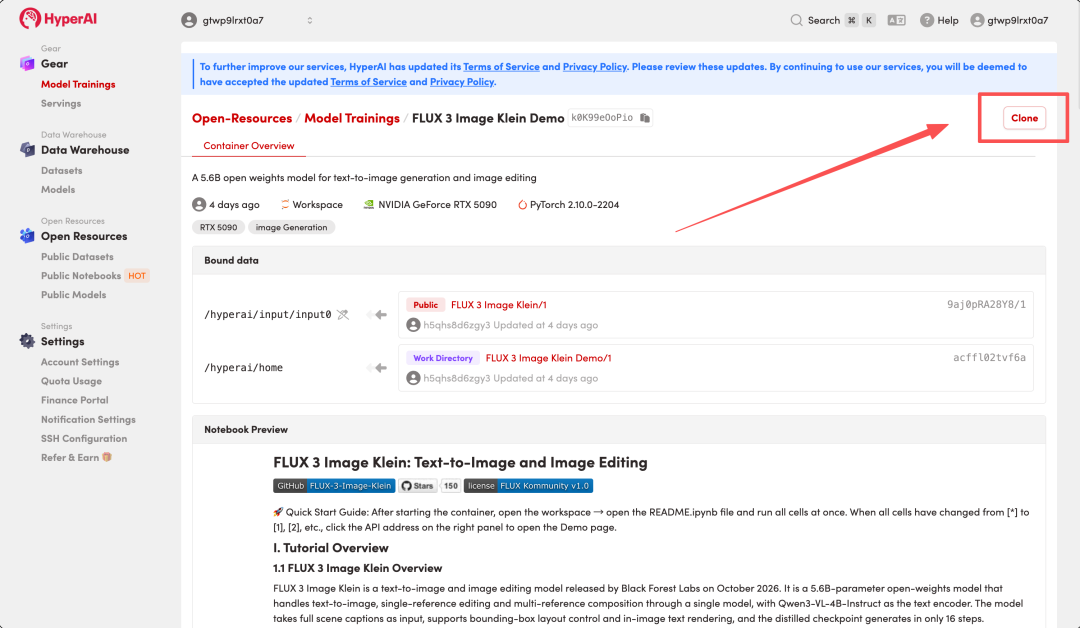
- After the page redirects, click “Clone” in the upper-right corner to clone this tutorial into your own container.
Note: The upper-right corner of the page supports language switching, currently offering Chinese and English. This tutorial article uses English as an example for step-by-step demonstration.
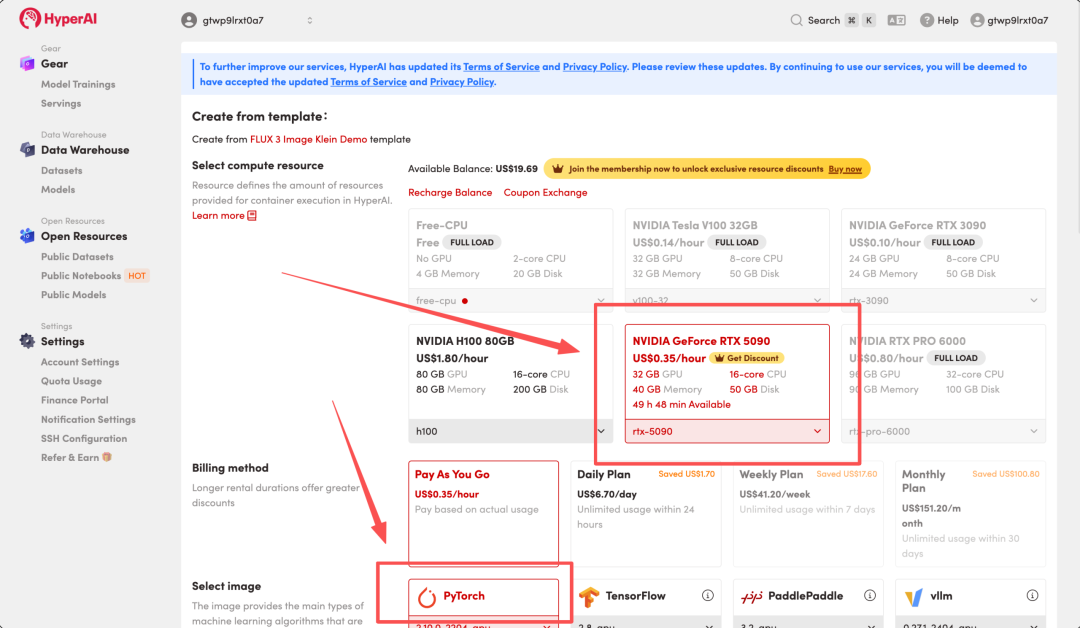
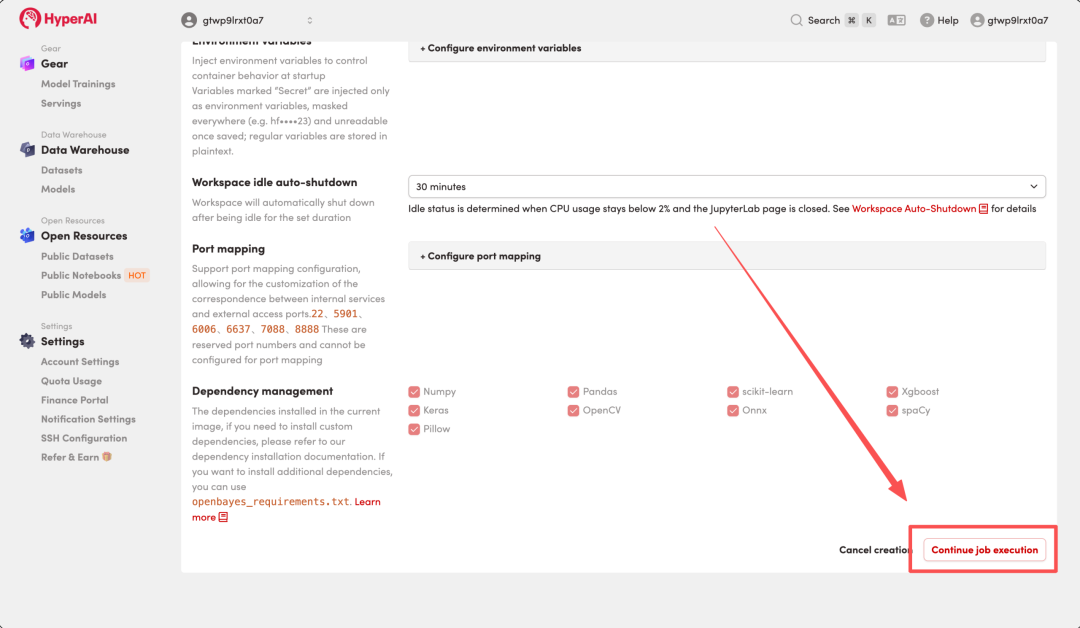
- Select “NVIDIA RTX 5090” and the corresponding image, then click “Continue job execution.” This tutorial defaults to using NVIDIA GeForce RTX 5090 (32 GB VRAM) resources.
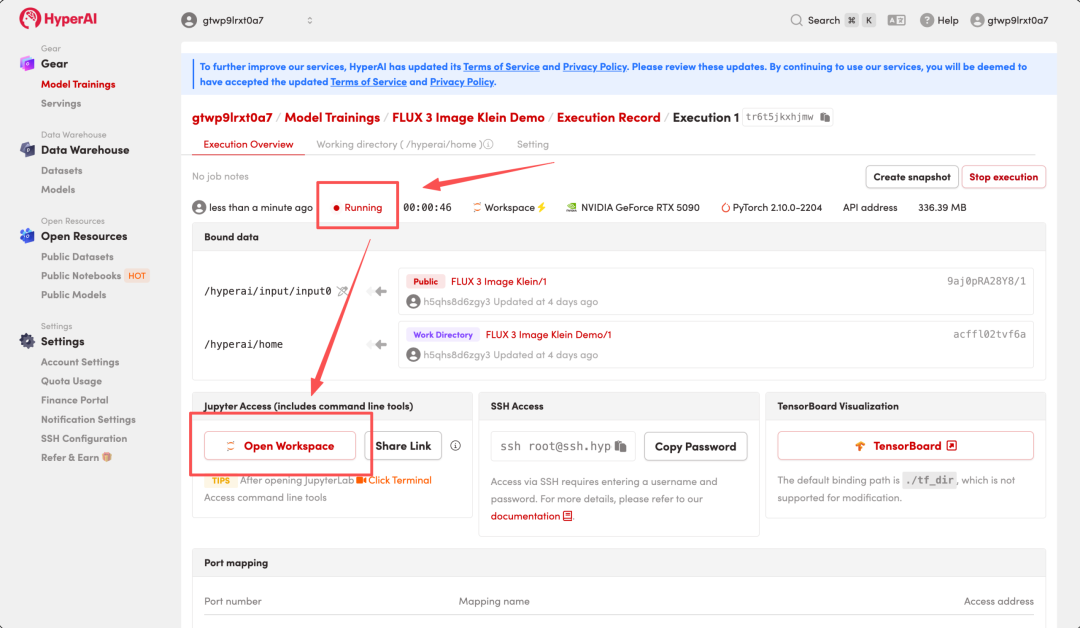
- Wait for resource allocation. When the status changes to “Running,” click “Open Workspace” to enter the Jupyter Workspace.
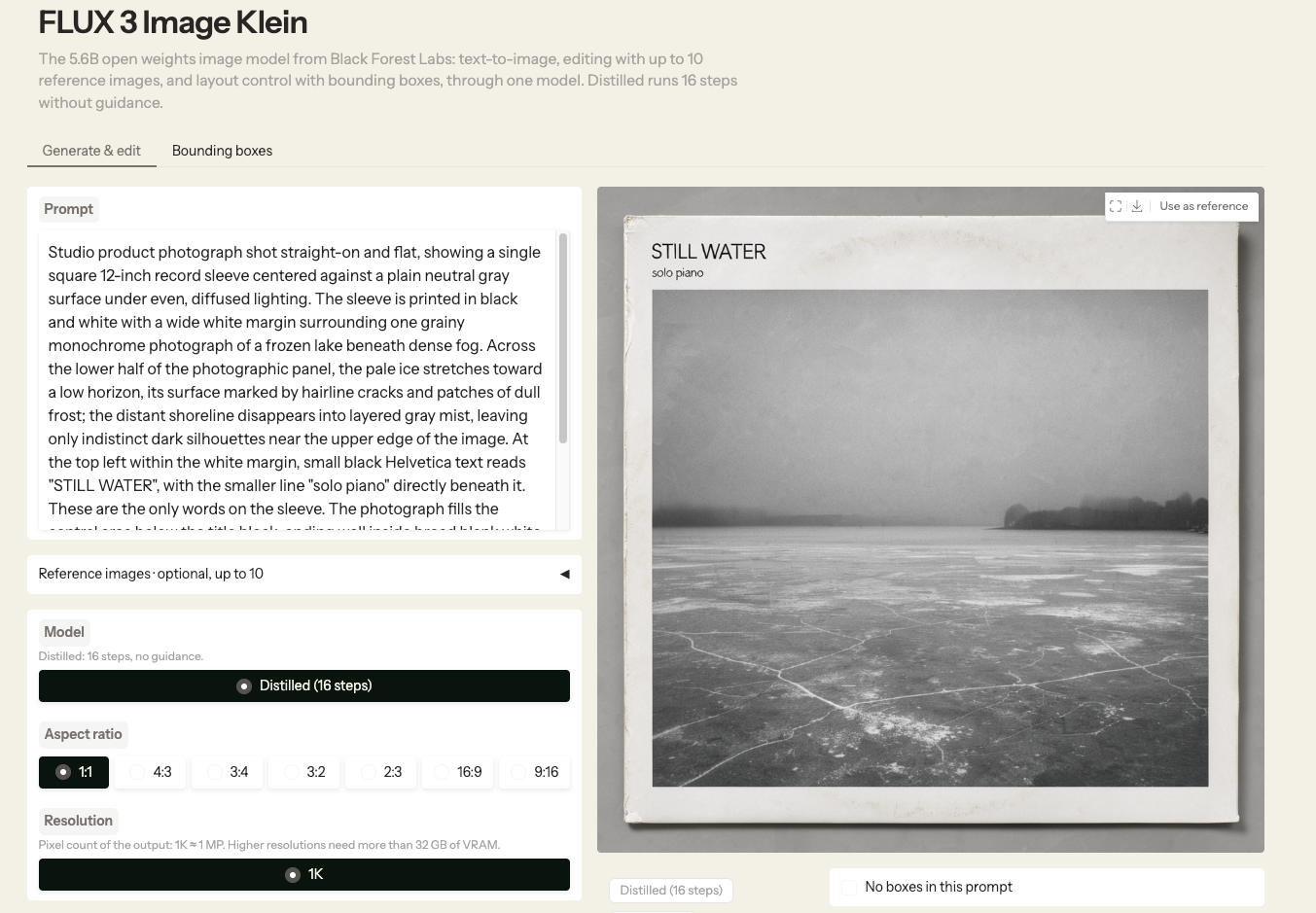
Showcase
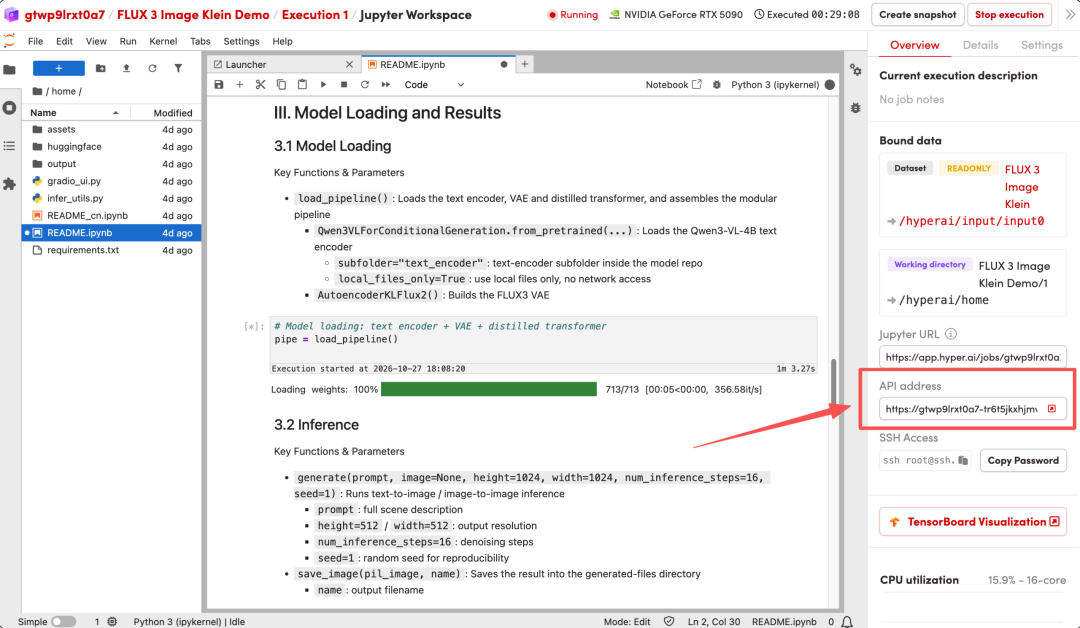
- After the page redirects, click the README file on the left, then click “Run” at the top.
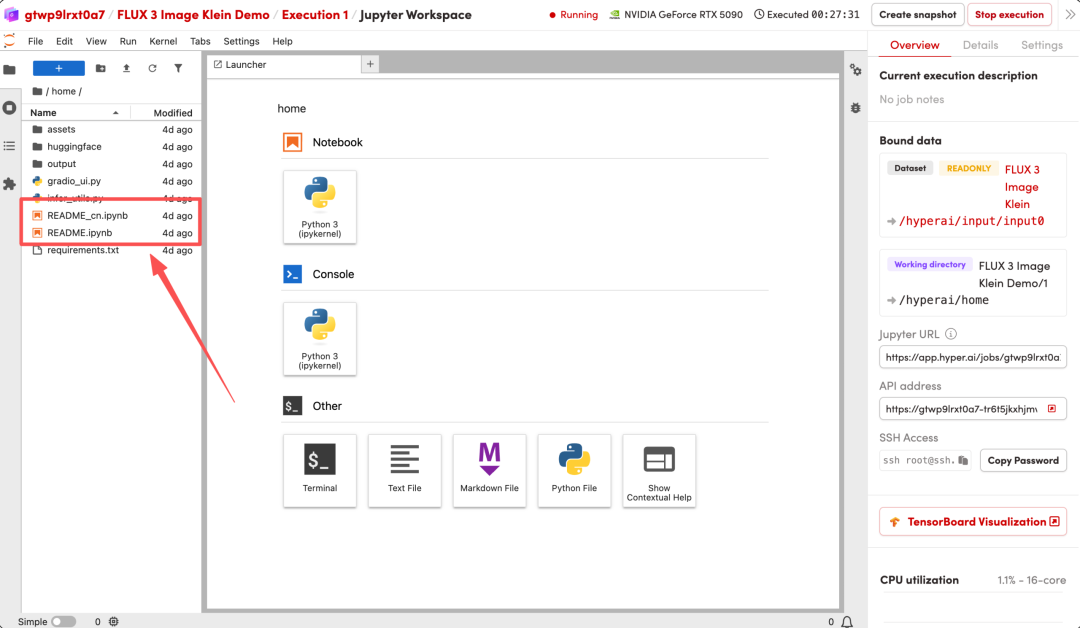
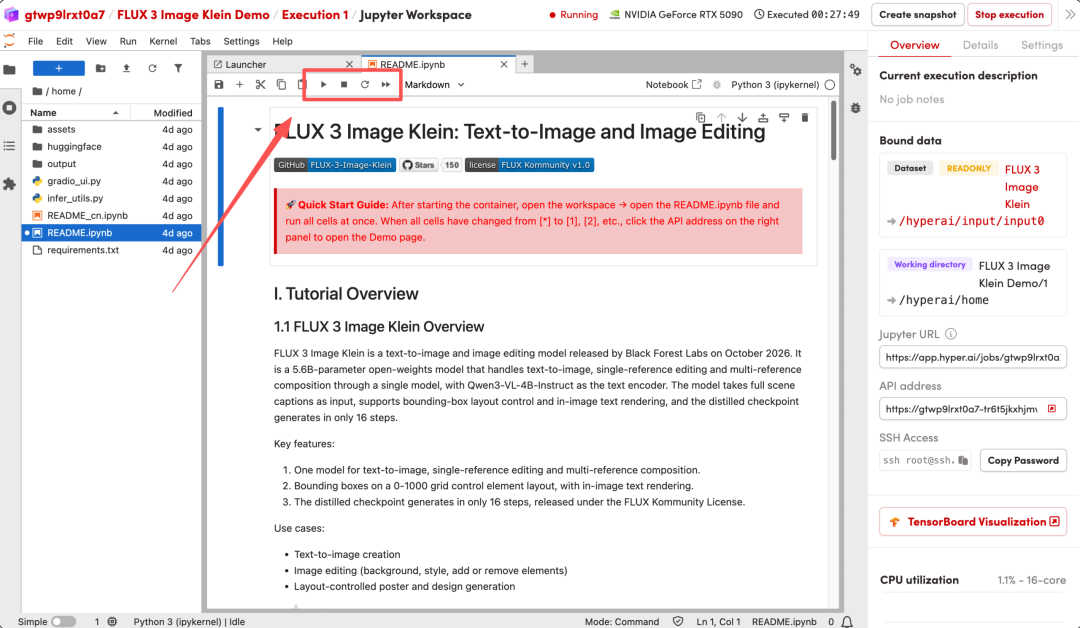
- After startup, click the API address on the right to access the demo interface in your browser.