Command Palette
Search for a command to run...
Online Tutorial | Qwen 3.6 Series' First Open-Source Model Agent: Significantly Enhanced Programming Capabilities, Activation Parameters of Only 3B, Surpassing Gemma 4-31B

Recently, the Qwen3.6-35B-A3B, a medium-sized model in the Qwen3.6 series, was officially open-sourced. With only the 3B model activated, it surpasses the previous generation model Qwen3.5-35B-A3B and the recently open-sourced Gemma4-31B on several key programming benchmarks.
Specifically, in authoritative benchmark tests such as Terminal-Bench 2.0 for terminal programming, NL2Repo for long-range programming tasks, and QwenClawBench for evaluating real-world agent capabilities,Qwen3.6-35B-A3B significantly outperformed Qwen3.5-35B-A3B, as well as Gemma4-26B-A4B and Gemma4-31B.
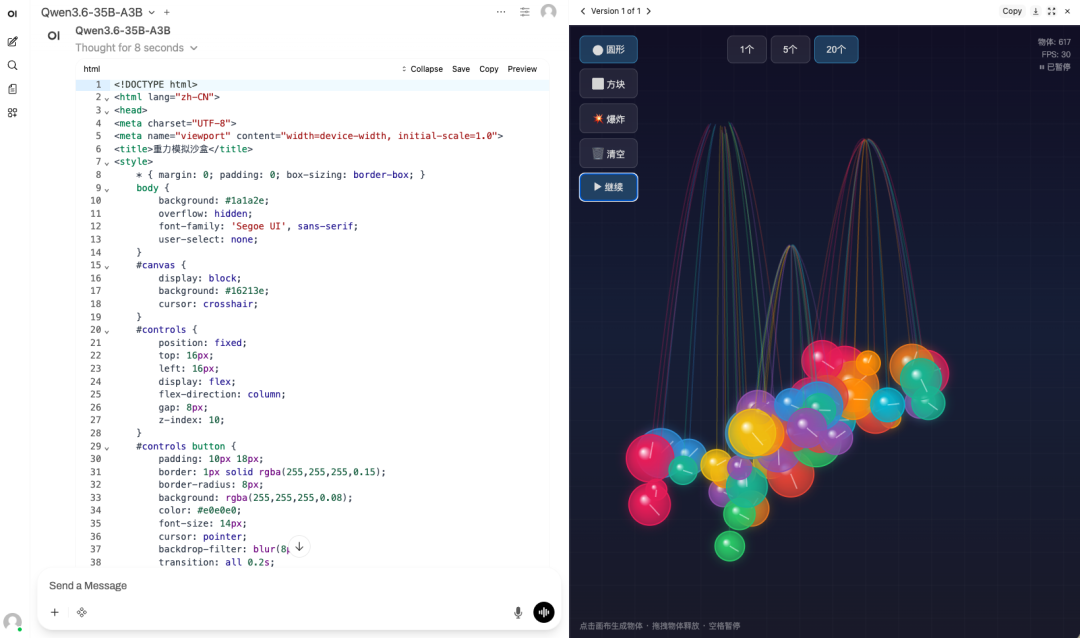
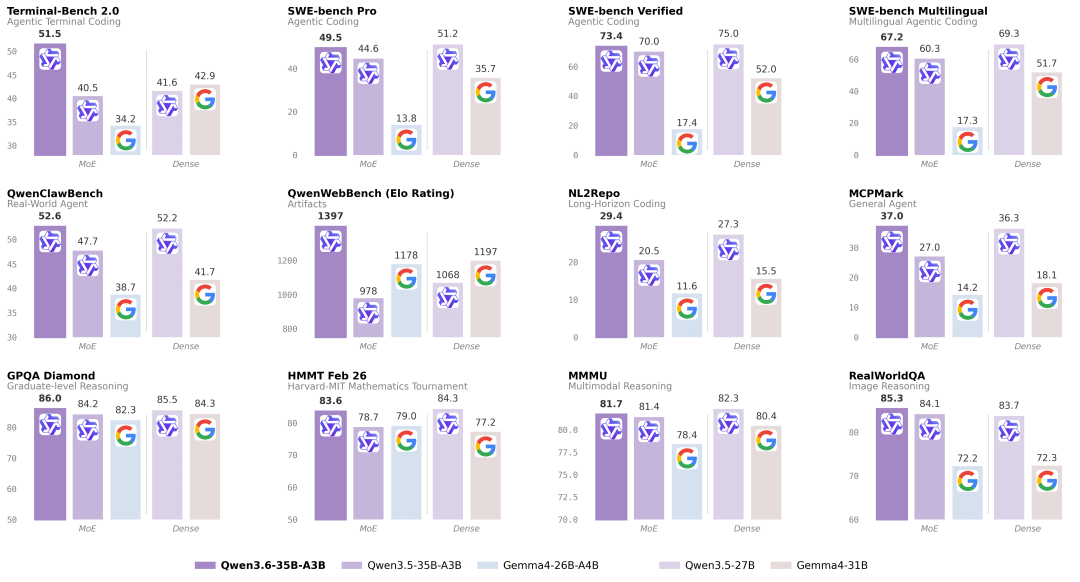 As a MoE model with only 3B activation parameters, Qwen3.5-35B-A3B has made significant improvements over the previous generation model in terms of agent programming, multimodal perception and reasoning.**first,**It can handle front-end development processes and repository-level code reasoning tasks more smoothly and accurately.**Secondly,**It adds a "Retain Thinking Process" feature option, which can retain the reasoning context in historical messages, simplifying the iterative development process and reducing additional overhead.
To facilitate global developers' quick experience with the latest open-source Qwen3.5-35B-A3B, HyperAI has launched a user-friendly Notebook with complete environment setup, enabling easy online deployment of the model.
Run online:
Welcome to visit our official website for more information:
Demo Run
1. After entering the hyper.ai homepage, select the "Tutorials" page, or click "View More Tutorials", select "Qwen3.6-35B-A3B Intelligent Agent Programming Tool", and click "Run this tutorial".
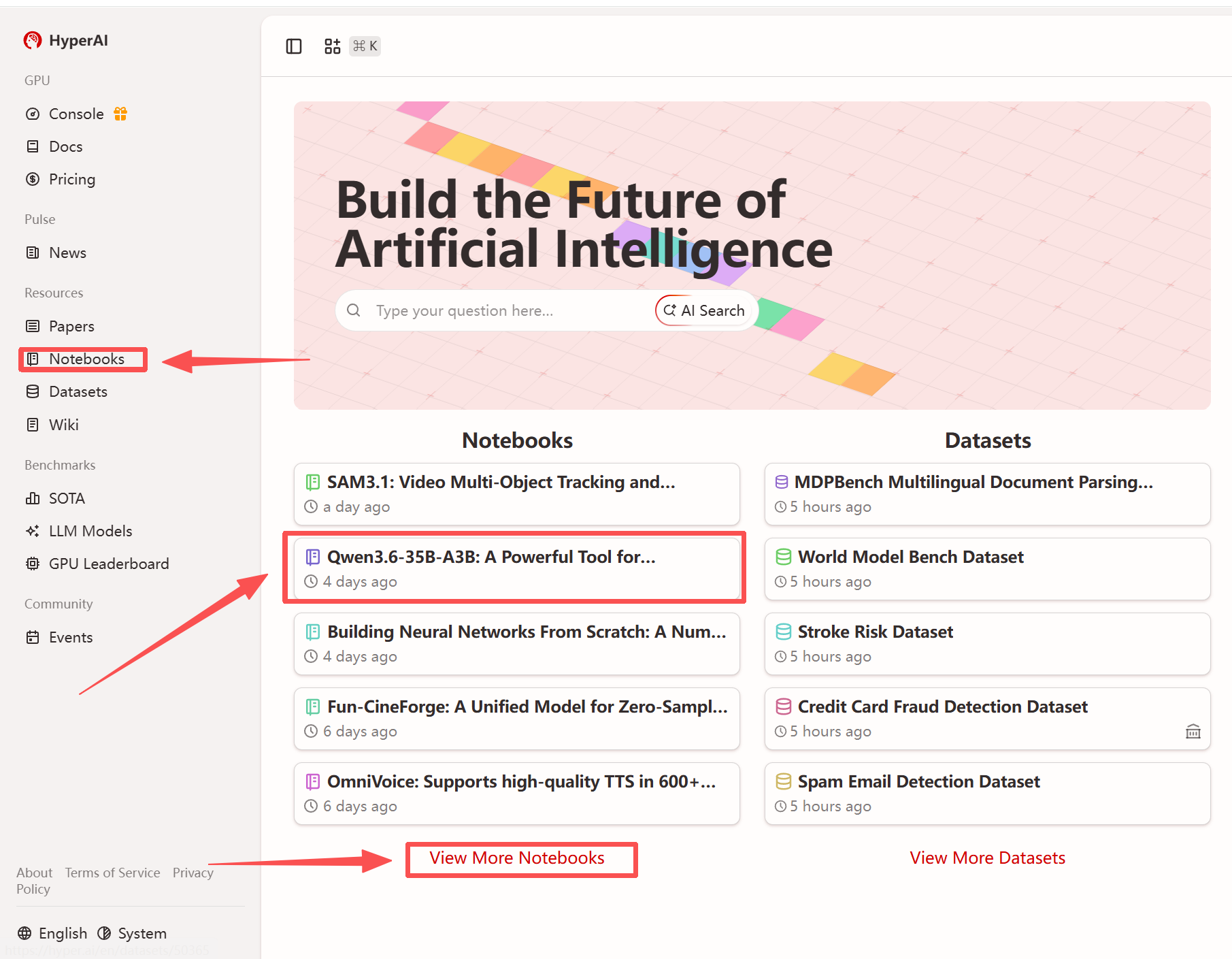
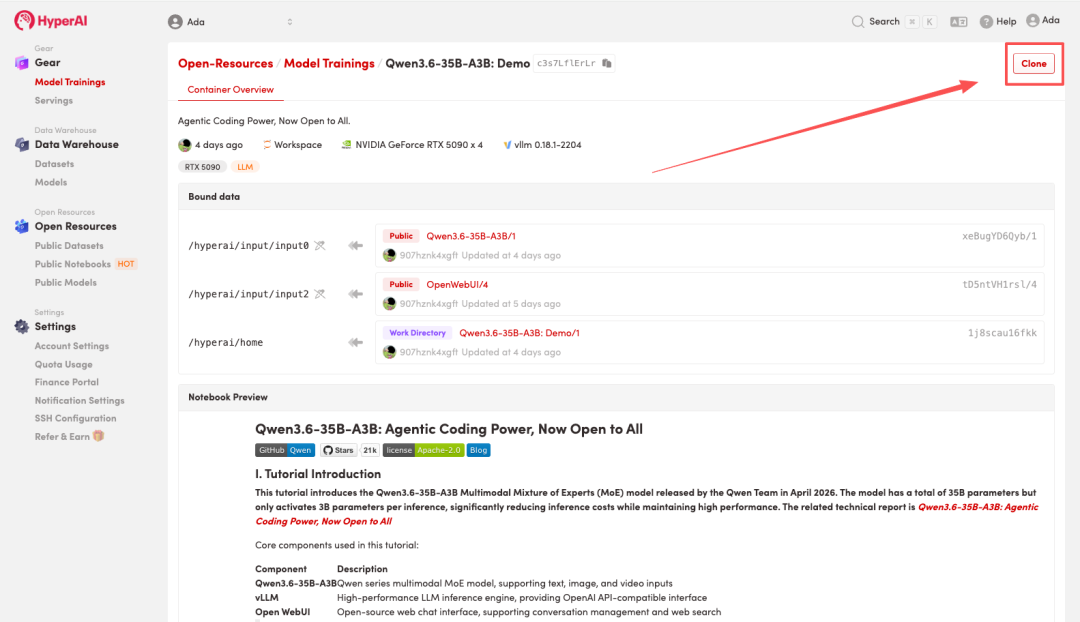
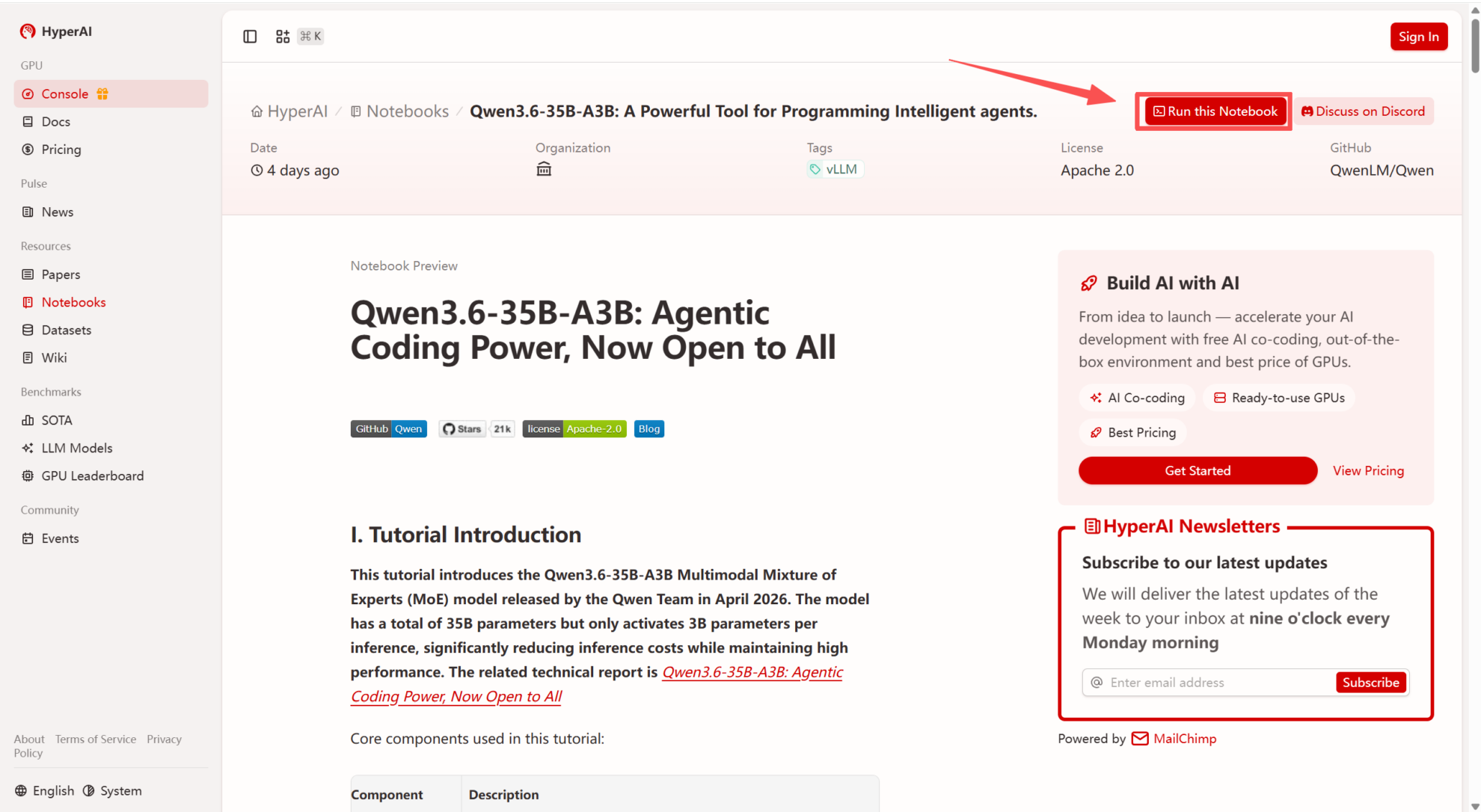 2. After the page redirects, click "Clone" in the upper right corner to clone the tutorial into your own container.
Note: You can switch languages in the upper right corner of the page. Currently, Chinese and English are available. This tutorial will show the steps in English.
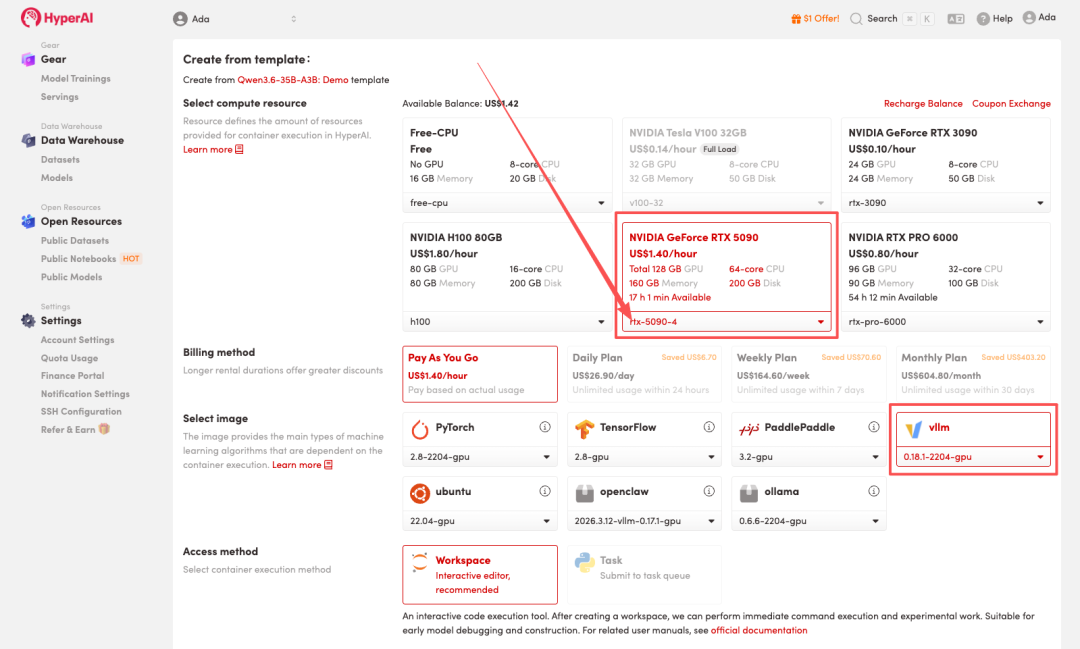
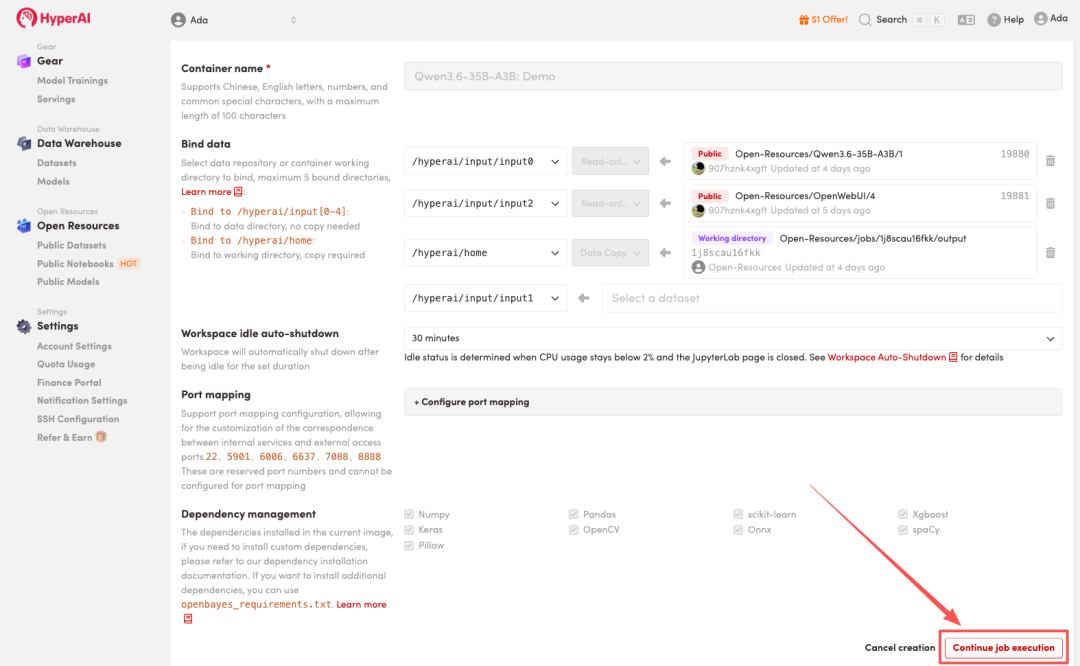
 3. Select the "NVIDIA RTX 5090 -4" and "vLLM" images, and click "Continue job execution".
HyperAI is offering a registration bonus for new users: for just 1,youcanget20hoursofRTX5090computingpower(originallypricedat7), and the resources are valid indefinitely.
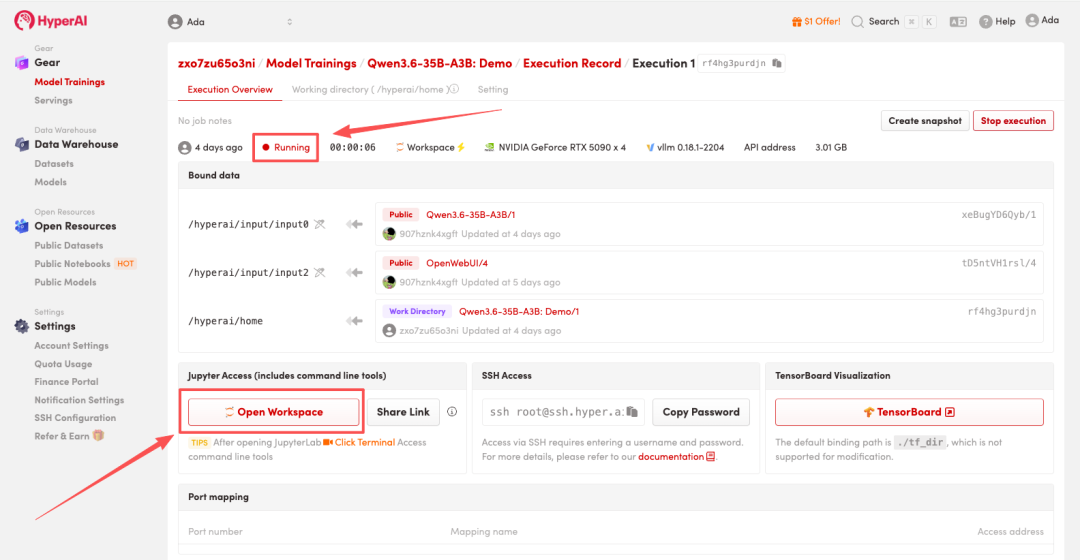
 4. Wait for resources to be allocated. Once the status changes to "Running", click "Open Workspace" to enter the Jupyter Workspace.
Effect display
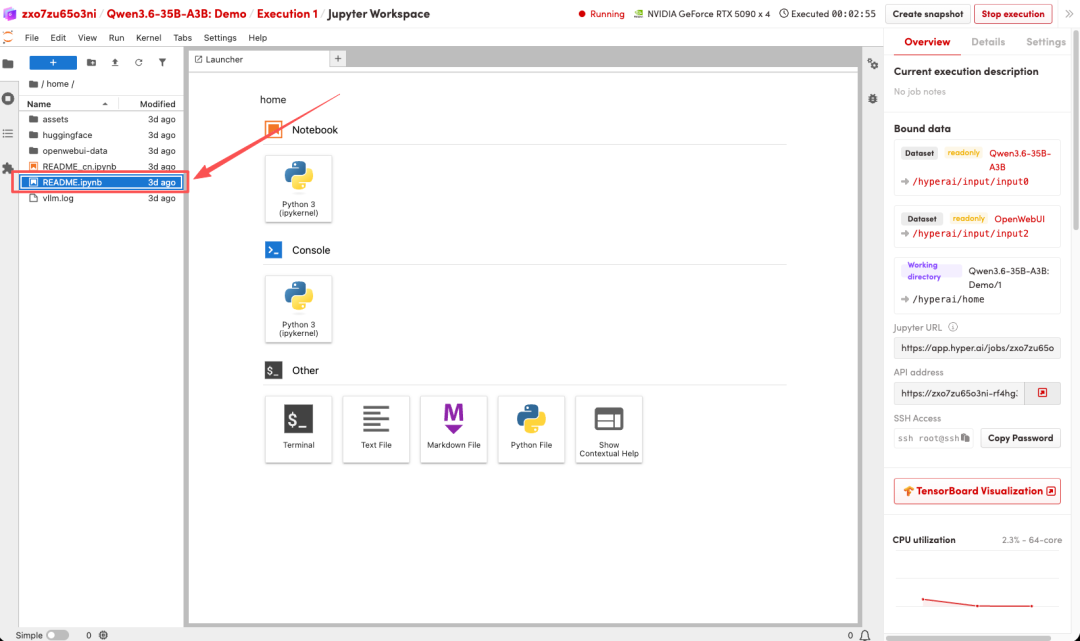
1. After the page redirects, click on the README file on the left, and then click on Run at the top.
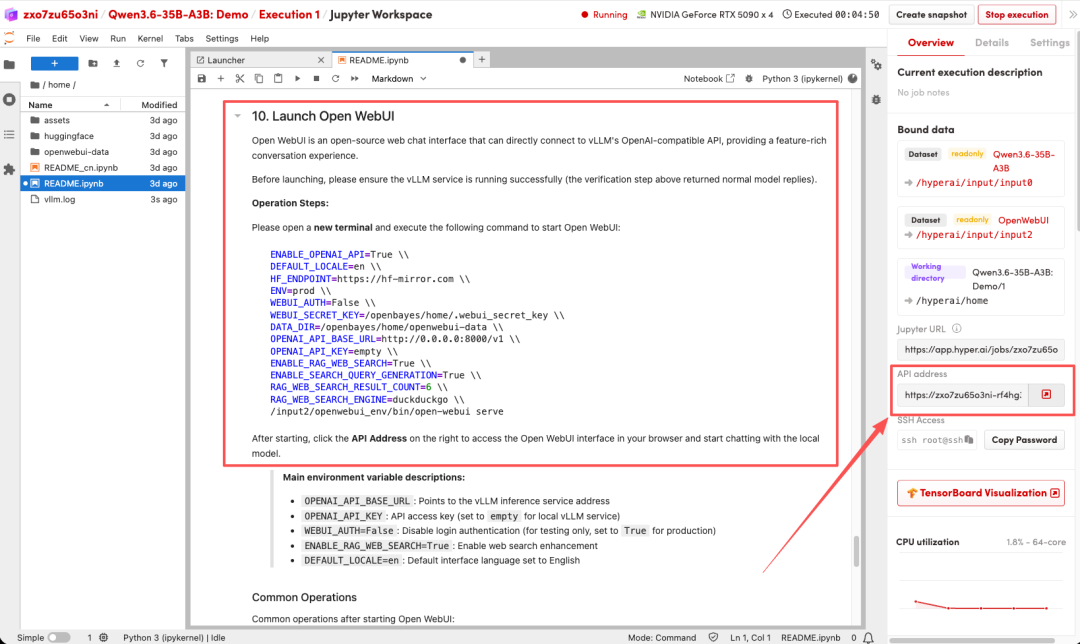
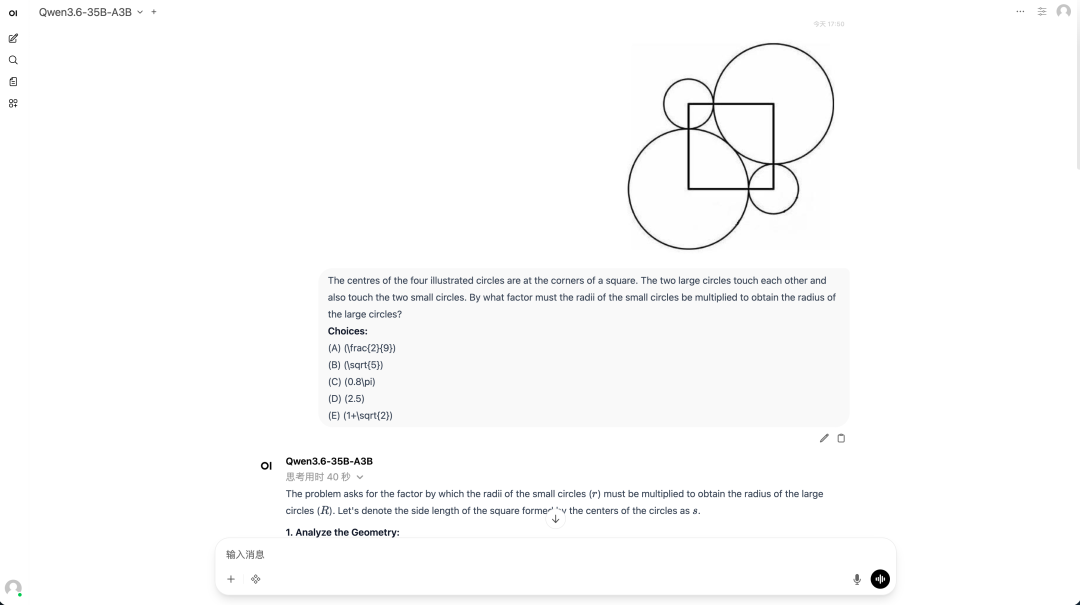
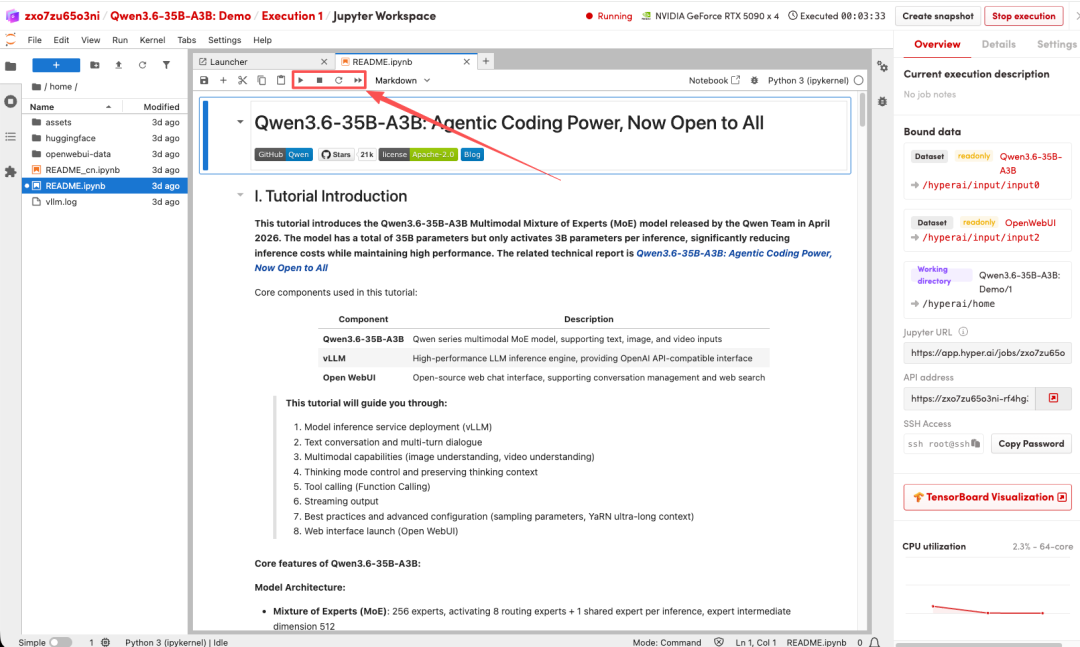 2. Once the process is complete, follow the instructions in the README to launch Open WebUI, then click the API address on the right to jump to the demo page.